
Login Issues
"You do not have access to this instance. Go to dashboard." - "Login URL generation failed: invalid authentication token." - "The instance is no longer valid."
These errors may occur when you are trying to access an instance of a different account or the instance has been deleted from the Dashboard.

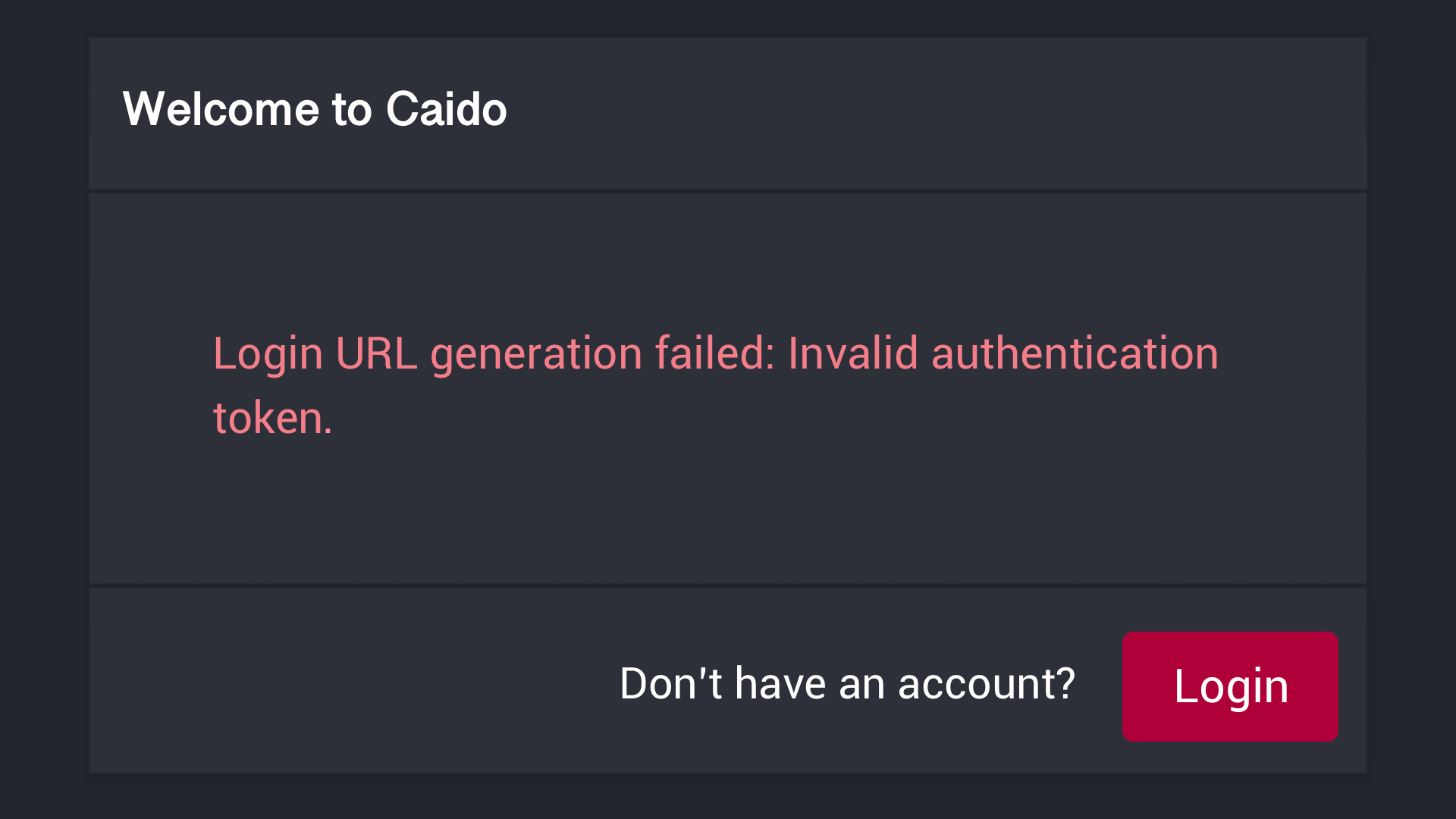
If you encounter one of these error messages after attempting to login, either:
Use the Other Account
To gain access to the instance, login to the account that created the instance.
Reset the Instance Credentials
To reset the instance credentials with the Caido CLI, launch Caido with the --reset-credentials command-line option.
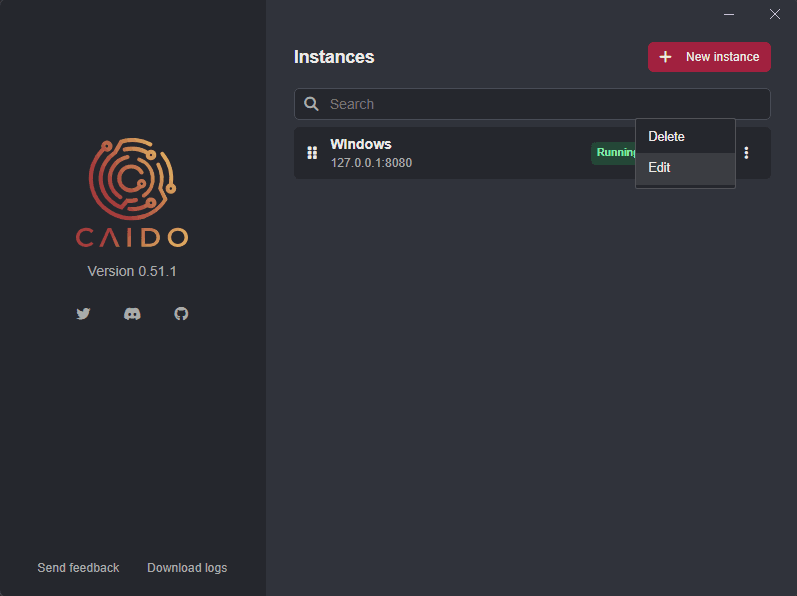
caido --reset-credentialsTo reset the instance credentials within the Caido desktop application, in the launch window, click on the button attached to an instance and select Edit.
Then, click on Advanced to expand the drop-down settings menu options and click on the Reset credentials checkbox.
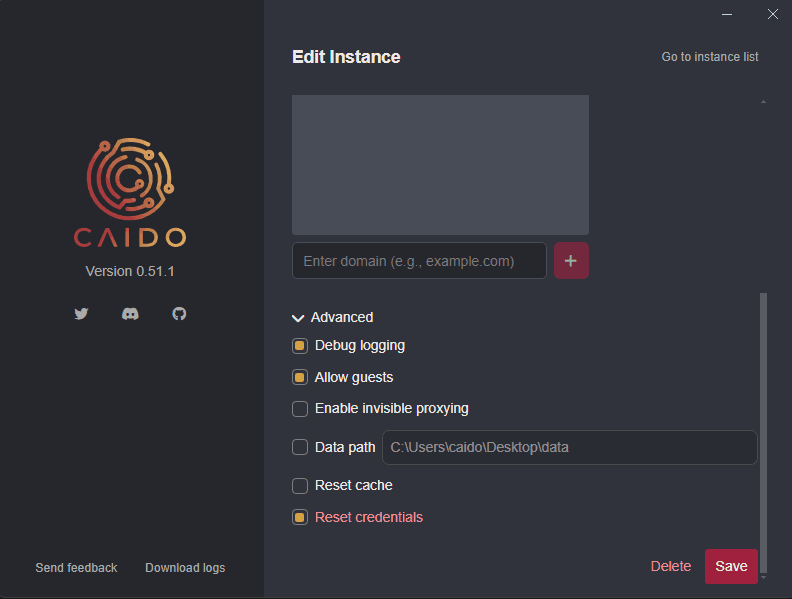
Click on the Save button to update and save the configuration.
NOTE
Once you have authenticated to the instance, ensure to remove the --reset-credentials option or checkbox, otherwise your instance credentials will be reset on every launch.
Delete the Data Storage Directory
Although it is not recommended, deleting the data storage directory reset the installation.
"Date mismatch: make sure your device's date and time settings are correct."
This error may occur due to your computer time being out of synchronization with the Coordinated Universal Time (UTC). For authentication, Caido only allows up to 5 minutes of deviation.
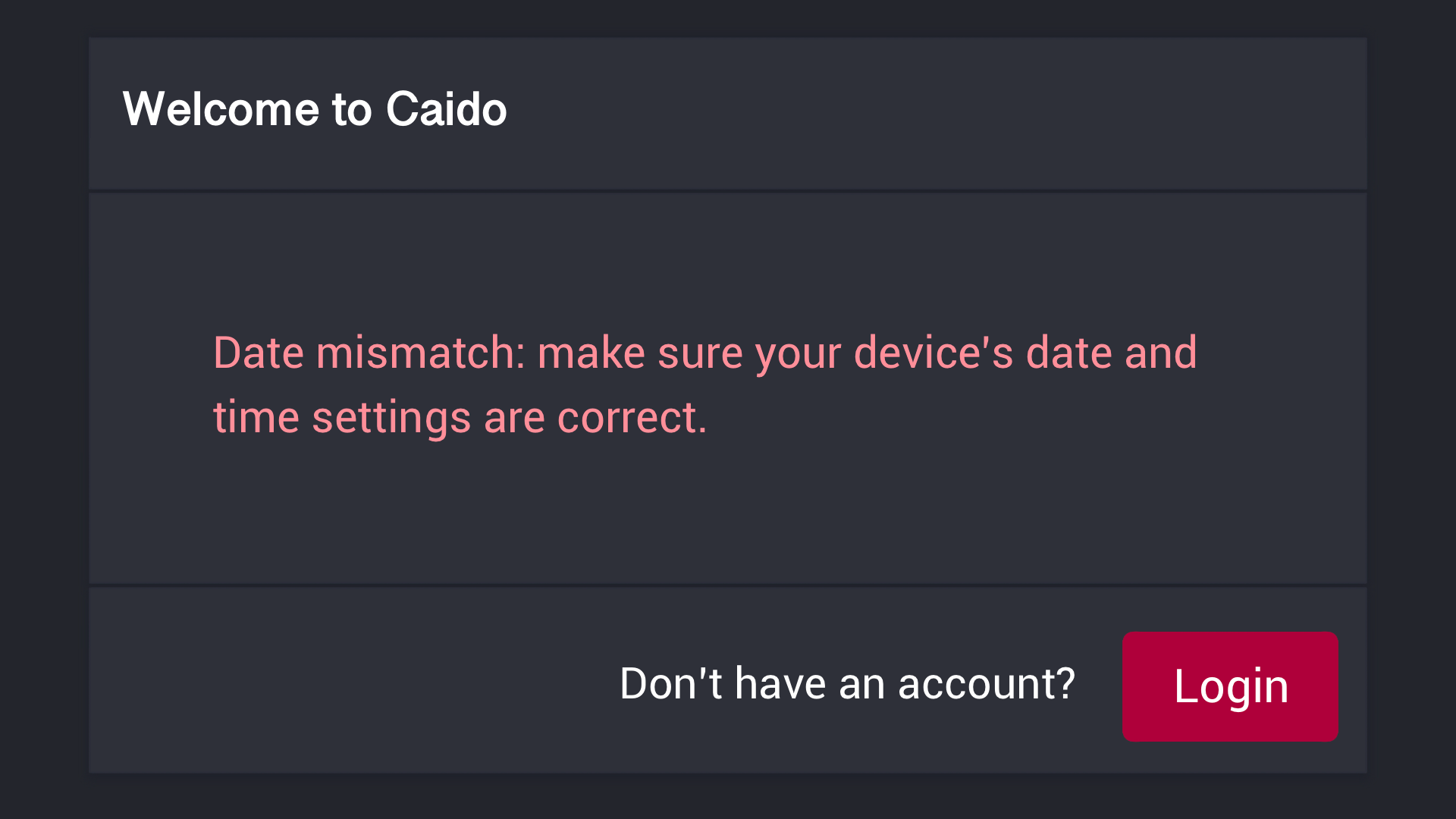
If you encounter this error after attempting to login, manually adjust the time utilized by your operating system.
Windows
To synchronize the time on Windows, right-click on the clock, select Adjust date and time, and click on the Sync now button.
macOS
To synchronize the time on macOS, use the sntp utility with the -S command-line option.
sudo sntp -S pool.ntp.orgTIP
Check the time synchronization status with the same command.
Linux
To synchronize the time on Linux, install the ntp package. Once the installation is complete, the service will start automatically.
sudo apt-get install ntpTIP
Check the time synchronization status with sudo systemctl status ntp.